
I recently ran into a GPU passthrough issue on a Proxmox node.
The hardware configuration looked correct, and the documentation was followed carefully.
Still, my ASUS Radeon RX 7900 XTX TUF 24G kept triggering
kvm: VFIO_MAP_DMA failed: Invalid argument in logs, and some guests
showed no image at all.
This post summarizes what the environment looked like, what symptoms I saw, and the practical steps that led to a stable setup.
Host environment#
Host:
- Proxmox VE 8.2.x
- Kernel:
6.8.12-2-pve - IOMMU enabled, VFIO in use
- TUF-RX7900XTX-O24G-GAMING inserted
The GPU and related devices were visible as:
# lspci -nnk | grep -A2 AMD
01:00.0 PCI bridge [0604]: Advanced Micro Devices, Inc. [AMD/ATI] Navi 10 XL Upstream Port of PCI Express Switch [1002:1478] (rev 10)
02:00.0 PCI bridge [0604]: Advanced Micro Devices, Inc. [AMD/ATI] Navi 10 XL Downstream Port of PCI Express Switch [1002:1479] (rev 10)
03:00.0 VGA compatible controller [0300]: Advanced Micro Devices, Inc. [AMD/ATI] Navi 31 [Radeon RX 7900 XT/7900 XTX] [1002:744c] (rev c8)
03:00.1 Audio device [0403]: Advanced Micro Devices, Inc. [AMD/ATI] Navi 31 HDMI/DP Audio [1002:ab30]
Relevant IOMMU groups for the GPU:
pvesh get /nodes/<node>/hardware/pci --pci-class-blacklist ""...
03:00.0 Navi 31 [Radeon RX 7900 XT/7900 XTX] -> group 19
03:00.1 Navi 31 HDMI/DP Audio -> group 20
...
01:00.0 Navi 10 XL Upstream Port -> group 17
02:00.0 Navi 10 XL Downstream Port -> group 18
...Kernel command line:
# /proc/cmdline
BOOT_IMAGE=/boot/vmlinuz-6.8.12-2-pve      # currently selected Proxmox kernel image
root=/dev/mapper/rootvg-root ro            # root filesystem device mounted read-only at boot
intel_iommu=on                             # enable Intel IOMMU (VT-d) for PCI passthrough
iommu=pt                                   # use pass-through mode for non-VFIO devices to reduce overhead
nofb                                       # disable generic framebuffer initialization
nomodeset                                  # disable kernel mode setting for GPU drivers on host
video=vesafb:off                           # disable VESA framebuffer
video=efifb:off                            # disable EFI framebuffer
video=simplefb:off                         # disable simple framebuffer
pcie_acs_override=downstream,multifunction # split IOMMU groups on hardware without proper ACS
VFIO and driver blacklisting configuration:
# /etc/modprobe.d/blacklist-gpu.conf
blacklist radeon
blacklist amdgpu
blacklist nouveau
blacklist nvidia
blacklist nvidia*
blacklist i915
blacklist snd_hda_codec_hdmi
blacklist snd_hda_intel
# /etc/modprobe.d/vfio.conf
options vfio_iommu_type1 allow_unsafe_interrupts=1
options vfio-pci ids=1002:1478,1002:1479,1002:744c,1002:ab30 disable_vga=1So far this is a fairly typical passthrough setup. For a baseline checklist, I cross-check against the official Proxmox PCI Passthrough guide.
The symptom: VFIO_MAP_DMA and missing output#
A minimal test VM configuration looked like this:
# /etc/pve/qemu-server/100.conf
agent: 1
bios: ovmf
boot: order=ide2;net0
cores: 8
cpu: host
efidisk0: local:100/vm-100-disk-0.qcow2,efitype=4m,pre-enrolled-keys=1,size=528K
hostpci0: 0000:03:00,pcie=1,x-vga=1
ide2: local:iso/archlinux.iso,media=cdrom
machine: q35
memory: 10240
name: test-vga
net0: virtio=XX:XX:XX:XX:XX:XX,bridge=vmbr0
vga: none
The VM would start, and the host logs showed:
QEMU[2912]: kvm: VFIO_MAP_DMA failed: Invalid argument
QEMU[2912]: kvm: vfio_container_dma_map(..., 0x380000000000, 0x10000000, ...) = -22 (Invalid argument)
Linux guests occasionally produced a usable image. Windows guests typically did not show any output at all on the physical display.
IOMMU groups were clean, VFIO binding worked, and ACS override was enabled. The configuration looked correct but the behavior was still problematic.
Step 1 - Use an explicit vBIOS ROM#
In this setup, the key change was to stop relying on the card’s own ROM as exposed to the VM and instead provide an explicit vBIOS file.
I downloaded a matching vBIOS for the ASUS RX 7900 XTX TUF from TechPowerUp VGA BIOS Collection and placed it under:
/usr/share/kvm/Asus.RX7900XTX.24576.221129.rom(Alternatively, you can dump your own ROM from the card and use that file instead.)
With that in place, the VM configuration was updated to reference the ROM explicitly.
Step 2 - Pass the GPU with romfile and disable rombar#
Updated test VM:
# /etc/pve/qemu-server/100.conf
agent: 1
bios: ovmf
boot: order=ide2;net0
cores: 8
cpu: host
efidisk0: local:100/vm-100-disk-0.qcow2,efitype=4m,pre-enrolled-keys=1,size=528K

# GPU passthrough
hostpci0: 0000:03:00,pcie=1,rombar=0,romfile=Asus.RX7900XTX.24576.221129.rom

machine: q35
memory: 10240
name: test-vga
net0: virtio=XX:XX:XX:XX:XX:XX,bridge=vmbr0
vga: none
The VFIO_MAP_DMA failed messages still appeared in the logs in some cases, but in this environment they did not appear to affect stability or functionality.
Step 2.1 - tune vm args#
# /etc/pve/qemu-server/100.conf
args: -cpu 'host,+kvm_pv_unhalt,+kvm_pv_eoi,hv_vendor_id=NV43FIX,kvm=off'host- CPU model “host passthrough”: QEMU exposes (as closely as virtualization allows) the same CPU model/features/stepping as the Proxmox host to the guest; best performance/compatibility, but live migration becomes unsafe because CPU identity can’t be guaranteed across different hosts.+kvm_pv_unhalt- Enables the KVM paravirtualized spinlock / pv-unhalt interface, helping guests handle spin-wait loops more efficiently on KVM.+kvm_pv_eoi- Enables paravirtualized End-Of-Interrupt (EOI) signaling, reducing VM-exits around interrupt handling and improving interrupt performance.hv_vendor_id=NV43FIX- Sets the Hyper-V vendor ID string reported via Hyper-V CPUID leaves to a custom 12-character value; note this does not enable Hyper-V enlightenments by itself-it only changes the vendor ID if Hyper-V identification is being exposed via otherhv_*options.kvm=off- Hides the KVM hypervisor signature/identification from the guest CPU interface (often used to reduce “running in a VM” detection); it does not disable KVM acceleration, it changes what the guest can see. After this change, Linux guests started reliably with video output on the physical monitor.
Step 3 - Windows installation flow#
For Windows guests, the remaining challenge in my case was mainly the installation sequence and drivers rather than Proxmox-specific configuration.
What worked consistently was:
- Boot Windows initially with a basic VGA / virtual display.
- Attach the Radeon GPU to the VM (with the
romfileconfiguration in place). - Boot Windows with the passthrough card present and install the AMD drivers inside the guest.
- Reboot the VM.
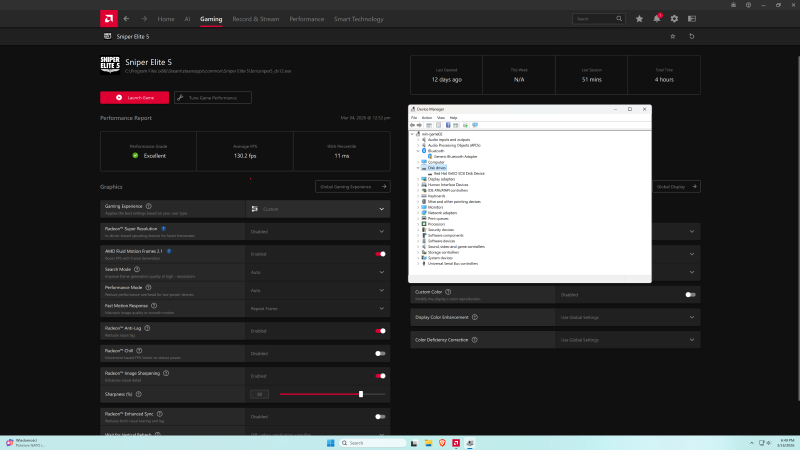
After that, there is a short delay (around 20 seconds in my environment) before the image appears on the physical monitor, and the system becomes fully usable.
The final “gaming” VM configuration looks like this:
# /etc/pve/qemu-server/123.conf
## gaming VM
agent: 1
args: -cpu 'host,+kvm_pv_unhalt,+kvm_pv_eoi,hv_vendor_id=NV43FIX,kvm=off'
balloon: 0
bios: ovmf
boot: order=virtio0
cores: 20
cpu: host
efidisk0: data:123/vm-123-disk.qcow2,efitype=4m,pre-enrolled-keys=1,size=528K

# Radeon RX 7900 XTX
hostpci0: 0000:03:00,pcie=1,rombar=0,romfile=Asus.RX7900XTX.24576.221129.rom

# Onboard USB controller passthrough for keyboard/mouse
hostpci1: 0000:00:14,pcie=1

machine: pc-q35-9.0
memory: 40960
meta: creation-qemu=9.0.2,ctime=1732315999
name: win-game01
net0: virtio=XX,bridge=isolated,firewall=1,mtu=1,queues=16
numa: 0
ostype: win11
scsihw: virtio-scsi-single
smbios1: uuid=XX
sockets: 1
tags: windows
tpmstate0: data:123/vm-123-disk-1.raw,size=4M,version=v2.0
vga: none
virtio0: data50:123/vm-123-disk-0.qcow2,cache=writeback,iothread=1,size=1T
vmgenid: XX
With this configuration:
- Linux guests work with GPU passthrough.
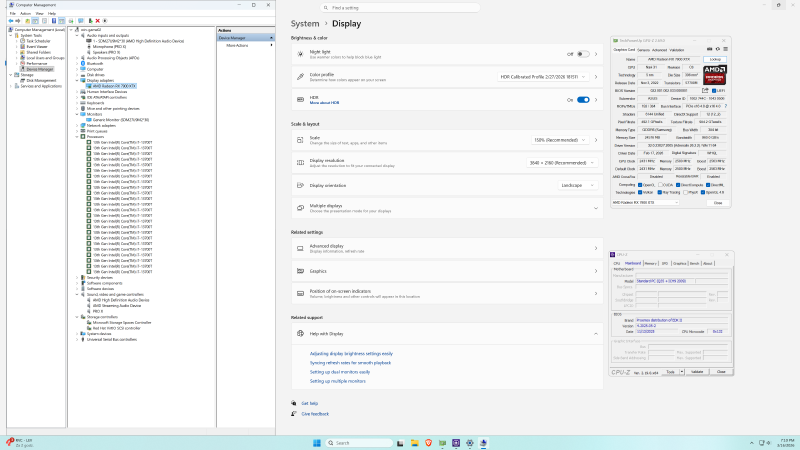
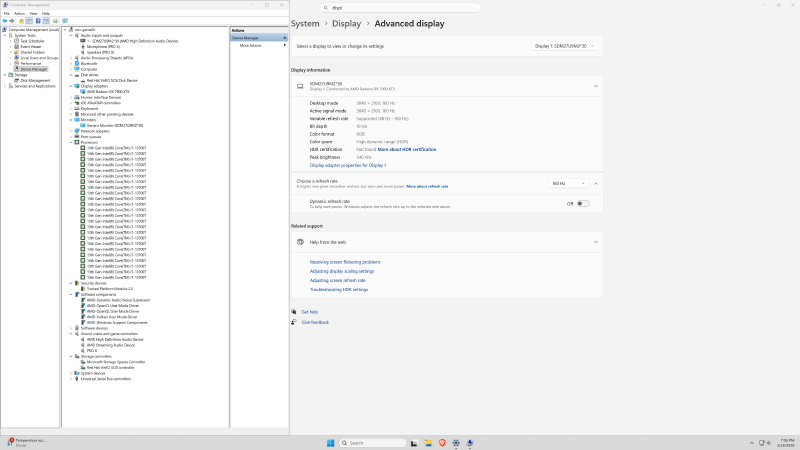
- Windows 10 / 11 guests work with GPU passthrough.
- Games and other GPU-intensive workloads have been running without noticeable issues so far.
Takeaways#
A few practical points from this experience:
- Modern AMD GPUs such as the RX 7900 XTX may require an explicit vBIOS via
romfilefor reliable passthrough behavior. - Seeing
VFIO_MAP_DMA failed: Invalid argumentin logs does not always mean the setup is unusable. What matters is guest stability and behavior. - For Windows guests, a clear driver installation sequence (basic display first, then passthrough device, then vendor drivers) is critical.
If you have a similar Proxmox + RX 7900 XTX setup and you are facing black screens or confusing VFIO errors, checking your vBIOS setup and the Windows installation flow is a good place to start.
Results#
Related posts#
- Known but Overlooked: Onboard E1000 NIC Problems in Proxmox
- Using Pre-Mounted Storage with Proxmox Backup Server